How to create a digital menu for your restaurant.
A digital menu is a live page customers visit on their phone: photos, prices, categories, and a QR code. Here is exactly how to build one.
Takes under 1 hour · No design skills · Free
What to include on your menu
Before building anything, gather your content. A complete menu has seven elements:
Categories
Group items logically: Starters, Mains, Desserts, Drinks, Specials.
Item names
Clear, descriptive names. Avoid internal kitchen codes or abbreviations.
Prices
Always visible, never hidden. Customers who can't see prices often leave.
Photos
One photo per item if possible. It shows your food the way it deserves to be seen.
Short descriptions
1-2 sentences. Key ingredients, preparation style, flavor notes. Skip the fluff.
Allergen info
Gluten, nuts, dairy, shellfish, mark them clearly so customers can order confidently.
Sold-out status
Mark unavailable items rather than hiding them. Customers see what you normally offer.
How to organize your menu
Menu structure affects how customers browse and what they order. Three rules that apply to every restaurant:
Put your best items first
Customers scan from top to bottom. Your most popular or highest-margin items belong at the top of each category, not buried at the end.
Keep each category focused
5-10 items per category is ideal. More than that slows decisions. If a category has 20 items, split it, “Pasta” into “Meat Pasta” and “Vegetarian Pasta”, for example.
Use familiar category names
Starters, Mains, Desserts, Drinks. Customers know what these mean. Save the creativity for the item names and descriptions.
How to put your menu online
Using 1food.menu, the fastest way to go from nothing to a live menu page:
Create your free account
Go to 1food.menu and sign up. Takes 2 minutes. No credit card.
Add your categories and items
Use the editor to create your categories, then add items with names, prices, descriptions, and photos. Updates go live as you save.
Set your opening hours and location
Add your address, embed your location, and set hours per day. Customers see whether you're currently open.
Download your QR code
Get a print-ready file. Your menu is now live at 1food.menu/@restaurant-name and ready to share.
How to share your digital menu
Your menu link works everywhere. Here are the four most effective places:
QR code on tables
Print and laminate a small card. Place it at every table so customers can scan without asking.
Instagram and social bio
One link in your bio replaces all the "DM us for the menu" friction.
Google Business Profile
Add your menu link to your Google listing. Customers searching for you see it immediately.
WhatsApp and SMS
Share the link directly when customers ask about your menu or hours.
How to keep your menu current
A digital menu only works if it's accurate. Three habits that keep yours current:
Update prices immediately
When ingredient costs change, update your menu the same day. Log in, change the number, save, done in 30 seconds.
Mark sold-out items during service
One tap marks an item unavailable. Customers see it's not available today without thinking you don't carry it. Restore it when stock returns.
Add new items with a photo
Every new item deserves a photo. Take it with your phone in natural light before service. A photo posted immediately beats a perfect photo added later.
Common questions
How long does it take to create a digital menu?
Under an hour for most restaurants. Creating your account takes 2 minutes. Adding categories and items depends on the size of your menu - a 20-item menu typically takes 20-30 minutes including photos.
Do I need a website first?
No. A digital menu on 1food.menu is a standalone page, you don't need a website. Your menu lives at 1food.menu/@restaurant-name and is shareable as a link or QR code.
What should I do with the QR code?
Print it and place it where customers look: table cards, the door, your window, the counter, printed receipts. The QR code always points to the latest version of your menu - you never need to reprint it when you update items.
How do I keep my menu up to date?
Log in from any device, make your change, and it goes live instantly. Most updates - price changes, marking an item sold out, adding a new special - take under 30 seconds.
Can I update it from my phone?
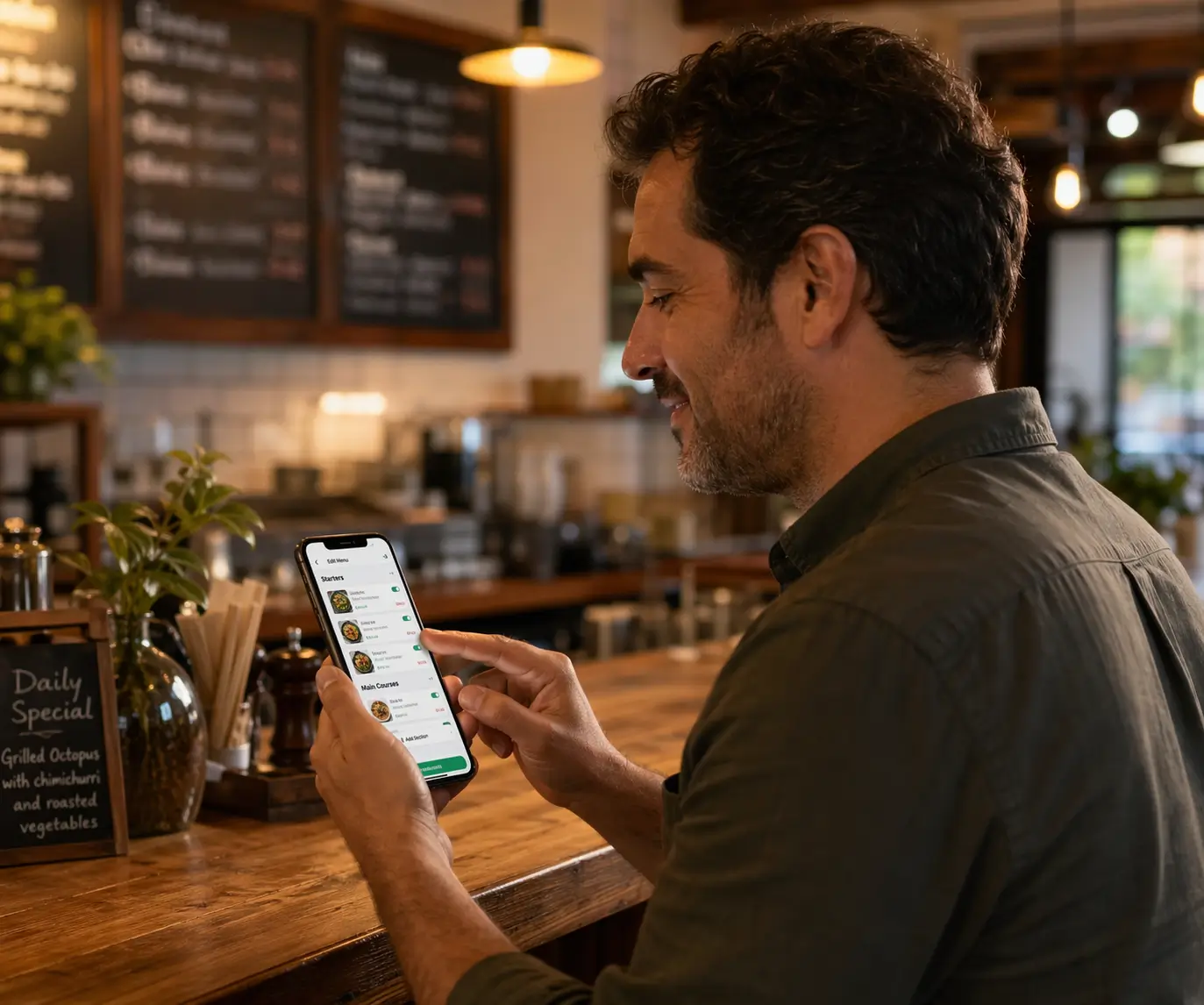
Yes. The editor works on any device. No app download required - just open the browser, log in, and edit.
Is a digital menu better than a PDF menu?
For sharing and updating, yes. A PDF requires customers to download a file, looks small on mobile, and goes stale the moment your menu changes. A digital menu opens instantly in the browser, shows photos, and updates in real time.
Create your menu now
Free forever. Ready in under an hour. A live menu customers can actually use.