
Add a TV screen
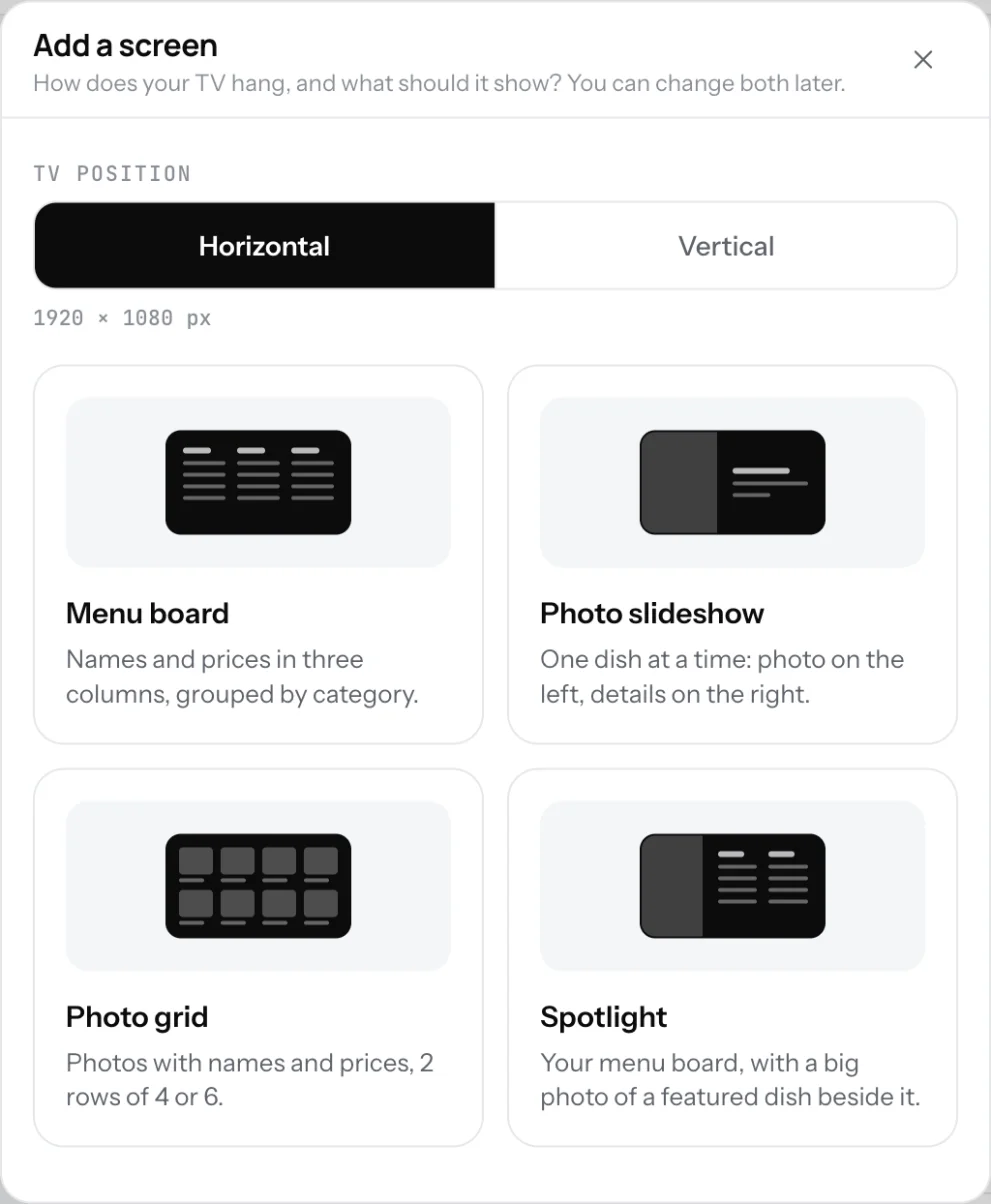
ProAdd a screen for each TV: pick horizontal or vertical, pick a design, give it a name. You can change all of it later.
Each TV in your shop gets its own screen in the Dashboard. A screen holds the design, what it shows and its own link.
Add a screen
- Open TV and click Add a screen.
- At the top, pick Horizontal or Vertical, the way the TV hangs on the wall.
- Click a design. The screen's page opens with a live preview.
- Under Screen, give it a Name guests never see, like "Counter TV" or "Drinks".
- Click Save changes.
Good to know
- You can change the orientation and the design later, on the screen's page under Design.
- Screen on turns a screen off without deleting it. The TV then shows "This screen is turned off".
- Delete screen is at the bottom of the screen's page. The TV showing that link stops showing your menu.
- The preview is only for you. Opening it does not count as the TV being on.
Related
- Your menu on a TVShow the same menu on the TV in your shop. Pick a design, open one link in the TV's browser. No box, no app. Part of Pro.
- TV designsFour designs for a TV menu: Menu board, Photo slideshow, Photo grid and Spotlight. Each works on a horizontal or vertical TV.
- What's on a TV screenPick the categories a TV shows and their order, or untick single dishes. New dishes show up by themselves.