Open your menu on a TV
ProOpen the screen's link in the TV's browser and go full screen. After that, the TV keeps itself up to date.
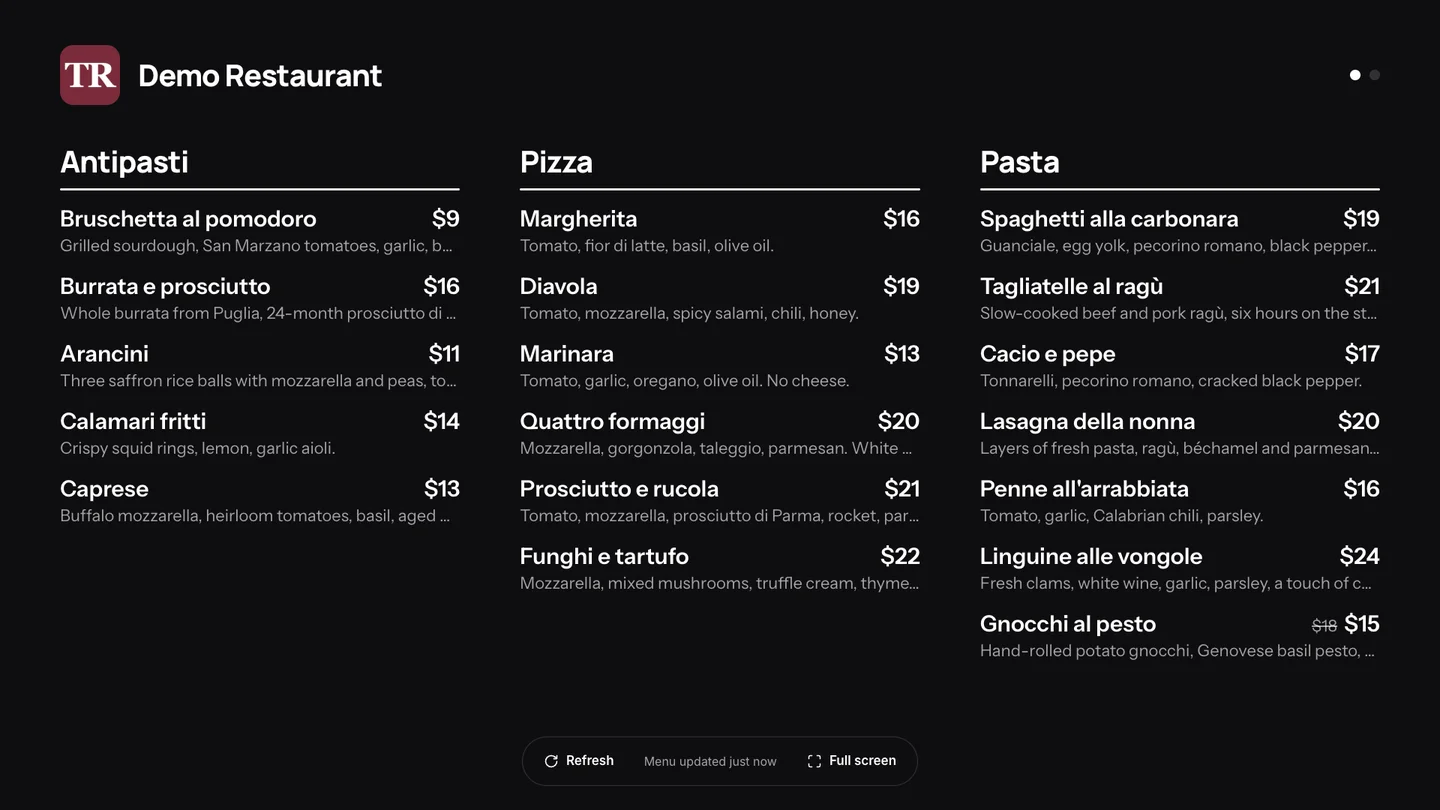
Each screen has a short link, like 1food.menu/tv/k7m2qp. Open it in the TV's browser and the TV shows your menu. There is nothing to install and nothing to pair.
Open the link on the TV
- Open TV in the Dashboard and copy the screen's link.
- On the TV, open its web browser and type the link. A Fire TV stick or a laptop plugged in with HDMI works the same way.
- Move the mouse or press a button on the remote. A bar shows at the bottom of the screen.
- Choose Full screen. The bar fades away by itself.
Your changes show by themselves
The TV checks for changes every two minutes. Change a price, mark a dish sold out or save a screen's settings, and the TV shows it within two minutes. Nobody has to touch it.
In a hurry? Press Refresh in the bar on the TV and the change shows at once.
Good to know
- Menu edges cut off? Turn on Edge margin in the screen's settings, A little or A lot.
- The screen's card in the Dashboard shows when its link was last opened on a TV.
- If the TV shows "This screen needs Pro" or "This screen is turned off", fix it in the Dashboard. The menu comes back within two minutes.
- Internet down? The TV keeps showing the menu it has and catches up when the connection is back.
Related
- Set up a TV for your menuWhat you need to show your menu on a TV: the TV, a device with a web browser, Wi-Fi and one link. No player box, no USB stick to update.
- TV screen settingsChoose what a TV screen shows and how: dark or light, speed, descriptions, allergens, prices, a QR code and sold-out dishes.
- Add a TV screenAdd a screen for each TV: pick horizontal or vertical, pick a design, give it a name. You can change all of it later.