Updates
ProShort notices under your name on your page: this week's offer, a holiday closure, a new dish. Up to three live at once.
An update is a card at the top of your page, under your name, in a row called "From the kitchen". Use it for the things guests should see first: an offer, a closure, a new dish, an event. Updates are part of Pro.
Post an update
- Open Updates in the Dashboard and click Add.
- Under Type, pick Text or Graphic.
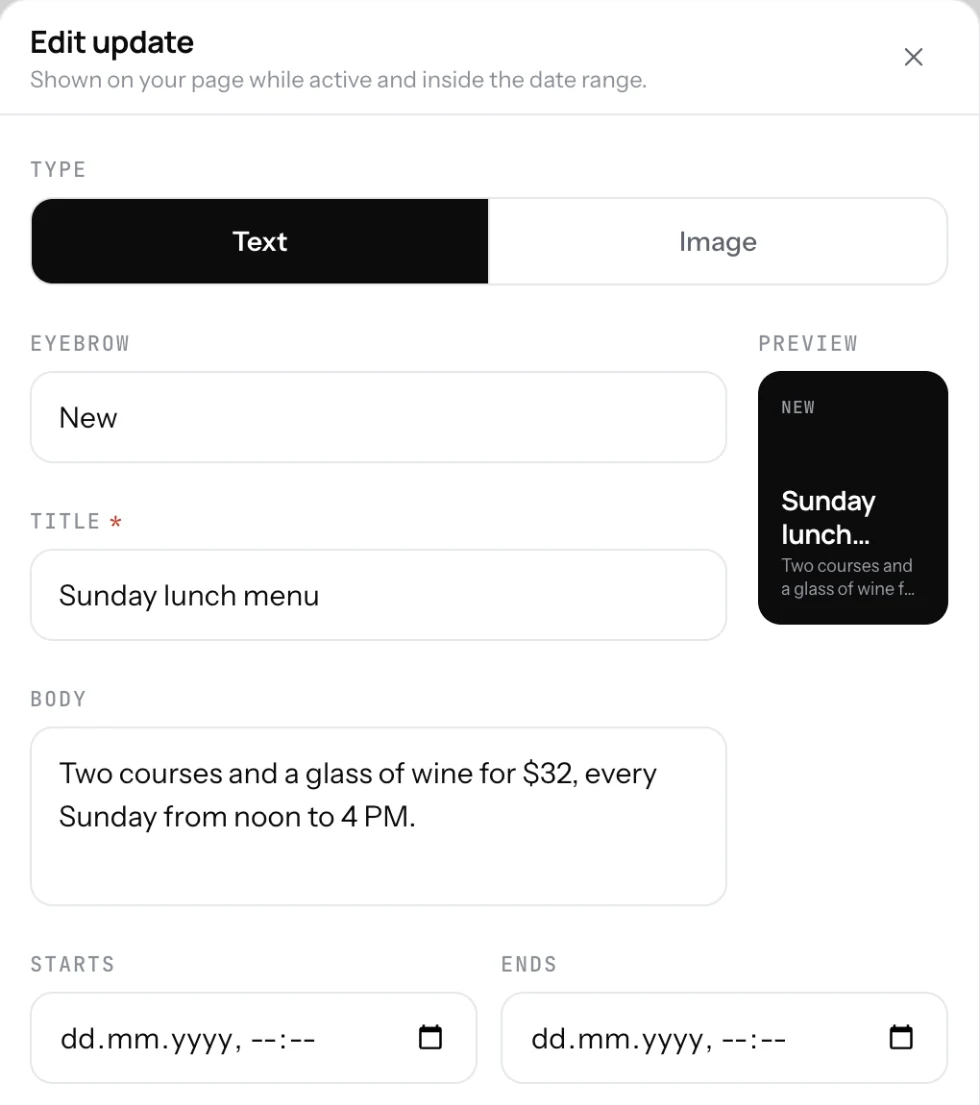
- Text: an Eyebrow ("This week"), a Title ("2 for 1 on pasta") and a Body with the details.
- Graphic: upload your image and write what is in it. Portrait, 3:4, works best.
- Set Starts and Ends if the update should appear and go away on its own.
- Turn Active on and click Add update.
Good to know
- Three active updates at a time. To post a fourth, turn one off first.
- An update outside its dates is marked expired and stays out of sight. Change the dates to bring it back.
- Guests tap a card to open it full screen, like a story.
- Keep the title short: it is read on a phone in a second.
- Updates show on your page, not on your TV screens. A TV shows the menu only.
Related
- Turn your page on or offOne switch puts your page online or takes it down. Off means the link and the QR code open nothing.
- Dish photosAdd a photo to a dish from your phone or from a link. Dishes with a photo get more attention on your page.
- Plan and billingFree is your page and QR code. Pro puts the same menu on your website and your TV, with no ads and with Updates.