Your menu on a TV
ProShow the same menu on the TV in your shop. Pick a design, open one link in the TV's browser. No box, no app. Part of Pro.
A TV screen shows your menu on the TV in your shop, with the same dishes, photos and prices as your page. It reads from the menu you already keep in the Dashboard, so there is nothing new to type. TV screens are part of Pro.
Put your menu on a TV
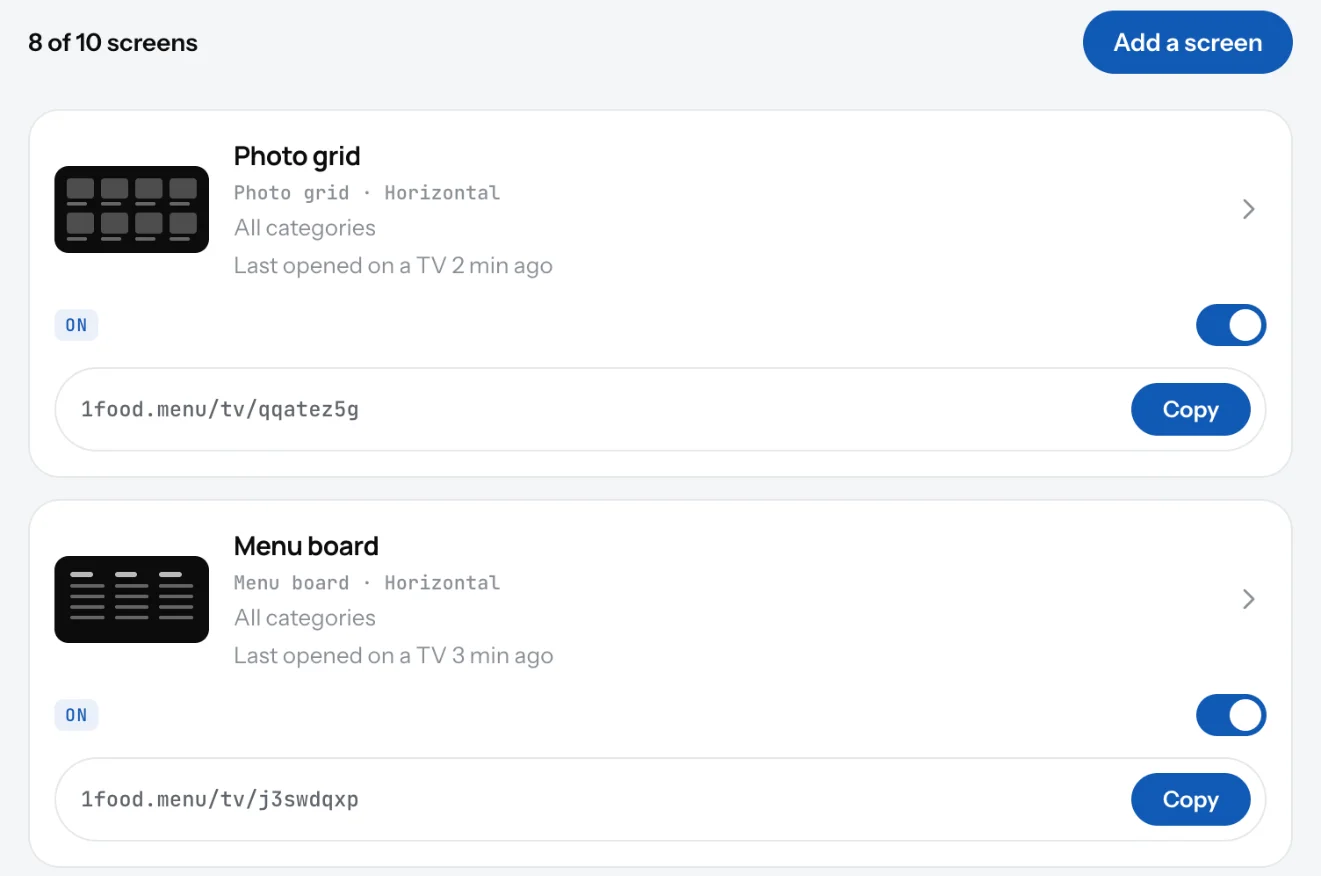
- Open TV in the Dashboard and click Add a screen.
- Pick how the TV hangs, Horizontal or Vertical, and pick a design.
- Choose what the screen shows and click Save changes.
- Open the screen's link in the TV's browser. Your menu fills the screen.
Good to know
- Any smart TV with a browser works, or a Fire TV stick, or a laptop plugged in with HDMI. No player box, no app to install. See set up a TV.
- Use a screen per TV. Two TVs side by side can show different categories, food on one and drinks on the other.
- Change a dish once in Menu. Your page, your website and your TV screens all read that one menu. The TV shows the change within two minutes, with nobody touching it.
- No ads and no 1FoodMenu logo on a TV screen.
Related
- Set up a TV for your menuWhat you need to show your menu on a TV: the TV, a device with a web browser, Wi-Fi and one link. No player box, no USB stick to update.
- Add a TV screenAdd a screen for each TV: pick horizontal or vertical, pick a design, give it a name. You can change all of it later.
- TV designsFour designs for a TV menu: Menu board, Photo slideshow, Photo grid and Spotlight. Each works on a horizontal or vertical TV.