TV designs
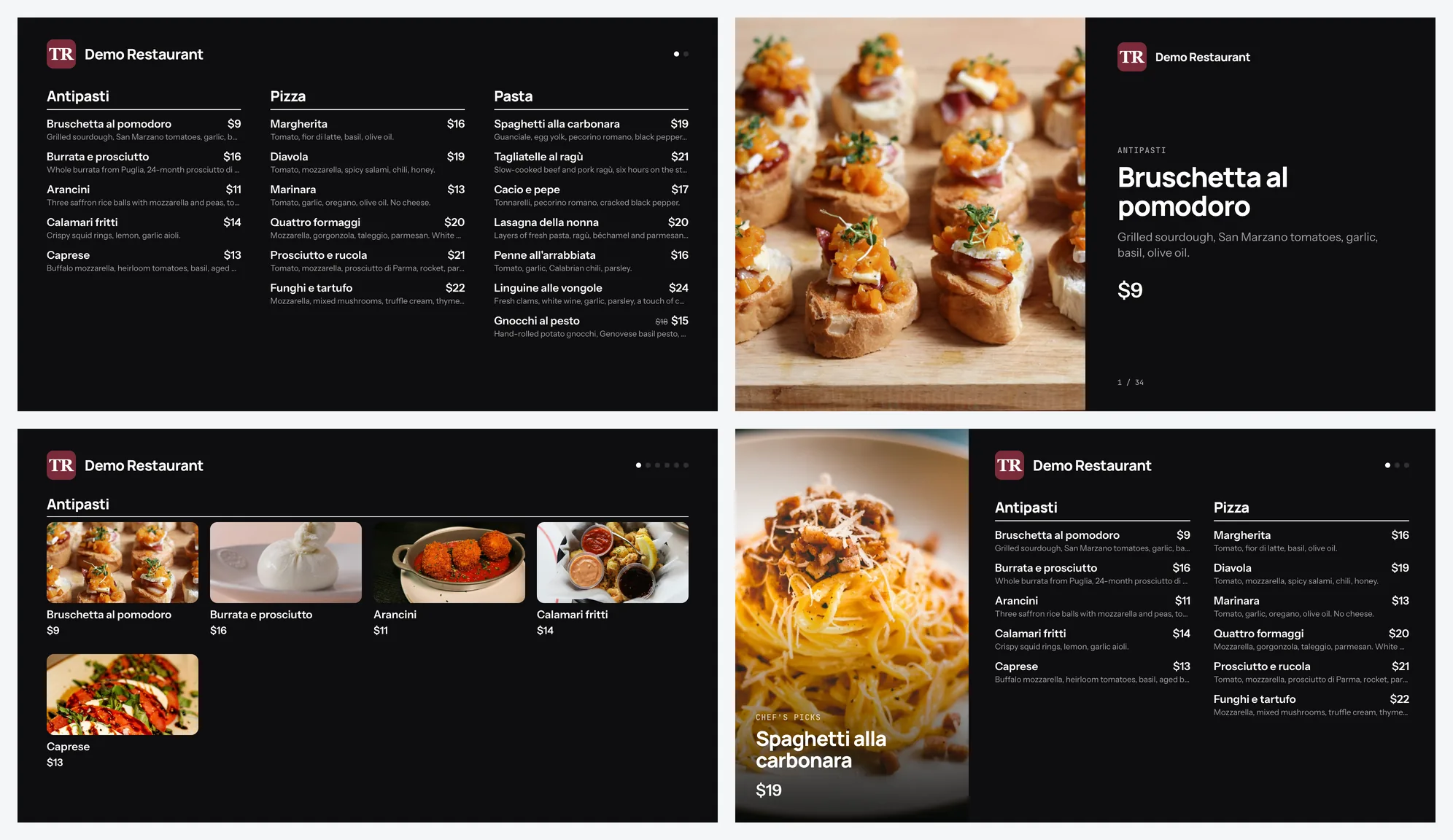
ProFour designs for a TV menu: Menu board, Photo slideshow, Photo grid and Spotlight. Each works on a horizontal or vertical TV.
A design decides how your menu fills the TV. All four use the same dishes, prices and photos from your menu, and each one works horizontal or vertical.
Pick a design
- Open TV and click a screen.
- Under Design, click the design you want. The preview changes straight away.
- Click Save changes. The TV shows it within two minutes.
The four designs
- Menu board. Names and prices in columns, grouped by category. Works without photos. The right pick for a long menu.
- Photo slideshow. One dish at a time, its photo on half the screen and the details on the other half. Shows only dishes with a photo.
- Photo grid. Photos with names and prices, 8 or 12 dishes a page. With no photos on the screen, it shows the menu board.
- Spotlight. Your menu board with a big photo beside it that changes by itself. The photos come from your featured dishes, or from every dish with a photo when none is featured.
Good to know
- Photo designs need good photos. See dish photos.
- A menu that doesn't fit turns into pages that change by themselves, or into smaller text. See screen settings.
Related
- Add a TV screenAdd a screen for each TV: pick horizontal or vertical, pick a design, give it a name. You can change all of it later.
- TV screen settingsChoose what a TV screen shows and how: dark or light, speed, descriptions, allergens, prices, a QR code and sold-out dishes.
- Dish photosAdd a photo to a dish from your phone or from a link. Dishes with a photo get more attention on your page.