
Schedule
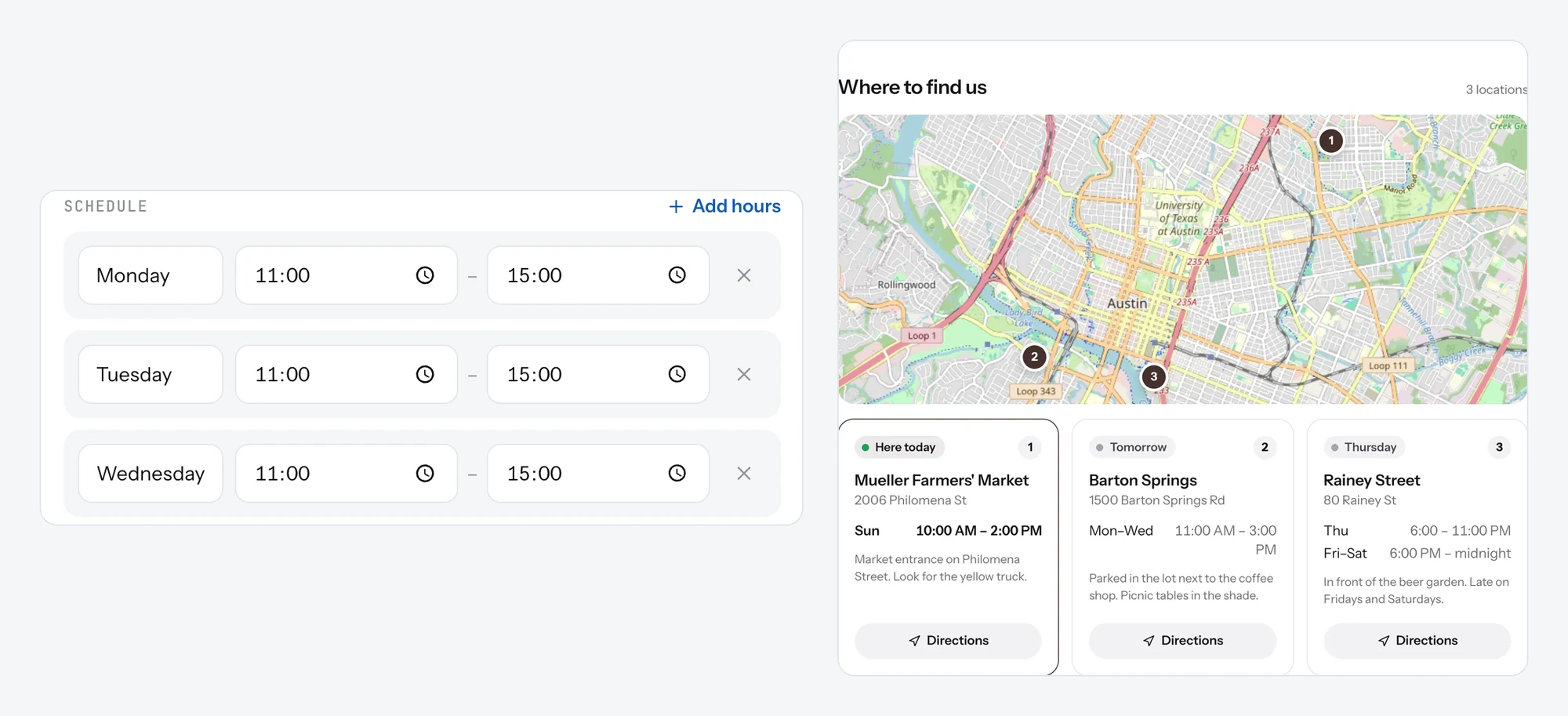
Set the days and hours for each spot. Guests see this week's stops and today's hours, and whether you are open now.
Each spot has its own schedule: which days you are there and from when to when. Together they make the week guests see on your page.
Set the hours
- Open the spot in Locations.
- Under the schedule, pick a Day and set Opens and Closes.
- Click Add hours for another day or a second slot on the same day.
- Save the spot.
Good to know
- Two slots on one day are fine: lunch and dinner. Overlapping slots are not, and the form flags them.
- Your page says "Open now", "Closes at 2 PM" or "Opens at 11 AM" from these hours. Keep them true.
- A spot with no hours still shows on the map, marked "Hours not listed".
- Guests tap a stop in the week view to focus the map on it.
Related
- SpotsThe places your truck stops. Pin each one on the map, the address fills in, and guests see them all on your page.
- Address and opening hoursPin your restaurant on the map and set the hours. Guests see a map, a directions button and whether you are open now.
- What guests seeYour page from top to bottom, as a guest sees it on a phone: cover photo, name and buttons, open or closed, updates, menu, map, contact.