Contact buttons
Call, WhatsApp, Email, Directions and a link of your own, such as ordering. Two of them go under your name.
Buttons are how guests reach you from your page. Turn on every way you want to be reached, then pick the two that sit under your name at the top.
Turn on the buttons
- Open Settings and pick the Buttons tab.
- Turn on the ones you use:
- Phone shows as Call. Use the international format with the country code.
- WhatsApp can be a different number than Call.
- Email opens the guest's email app.
- Directions opens your Google Maps link, or the pin you set.
- Custom link is any address: ordering, reservations, your delivery partner. Give it a Label of up to 30 characters, "Order online".
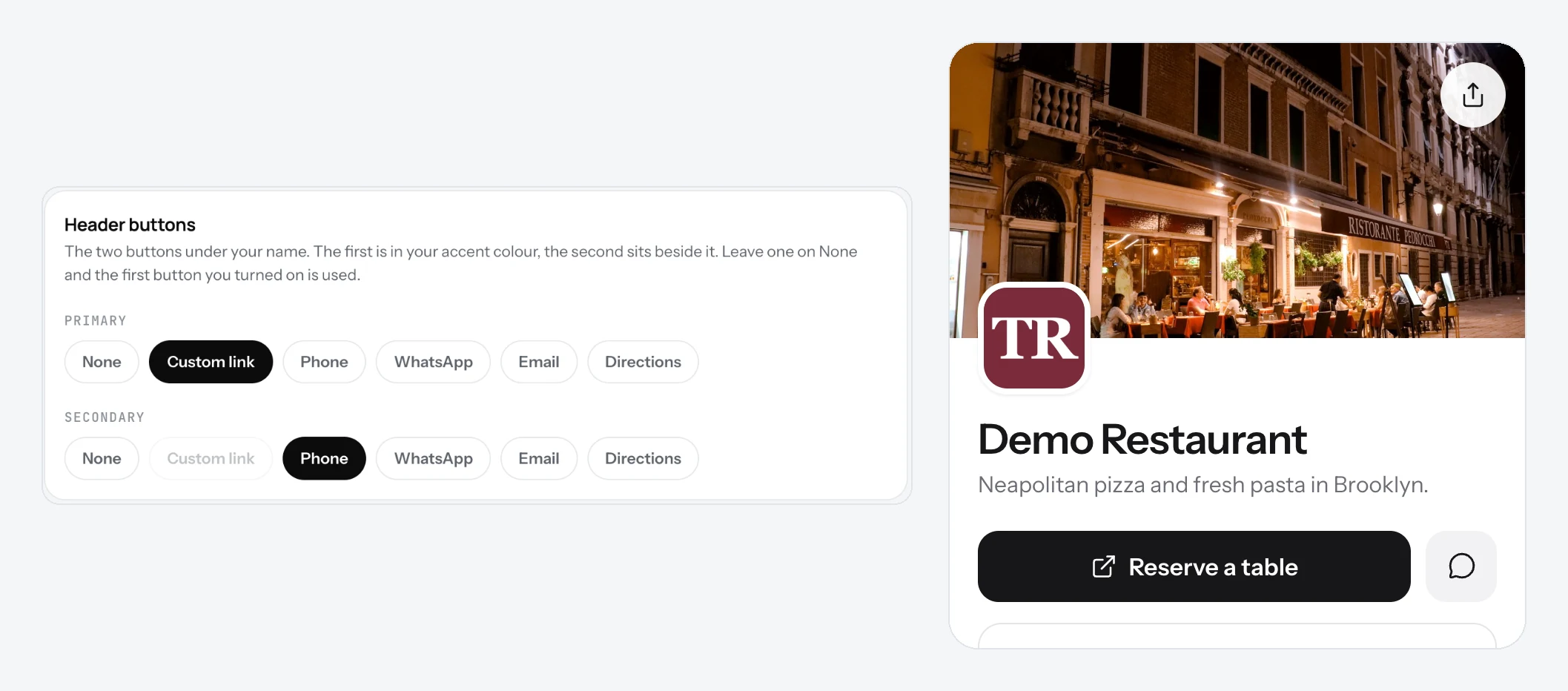
- Under Header buttons, pick Primary and Secondary. Leave one on None to show just one.
- Save.
Good to know
- The primary button is in your accent colour. The secondary sits beside it.
- If you pick nothing for the header, the first button you turned on is used.
- Directions needs an address first. The tab tells you if it is missing.
- Your page does not take orders itself. Point the custom link at the service that does.
Related
- Address and opening hoursPin your restaurant on the map and set the hours. Guests see a map, a directions button and whether you are open now.
- Name, logo and descriptionThe top of your page: your logo, your name, one line under it, and a longer text about your place.
- What guests seeYour page from top to bottom, as a guest sees it on a phone: cover photo, name and buttons, open or closed, updates, menu, map, contact.