TV screen settings
ProChoose what a TV screen shows and how: dark or light, speed, descriptions, allergens, prices, a QR code and sold-out dishes.
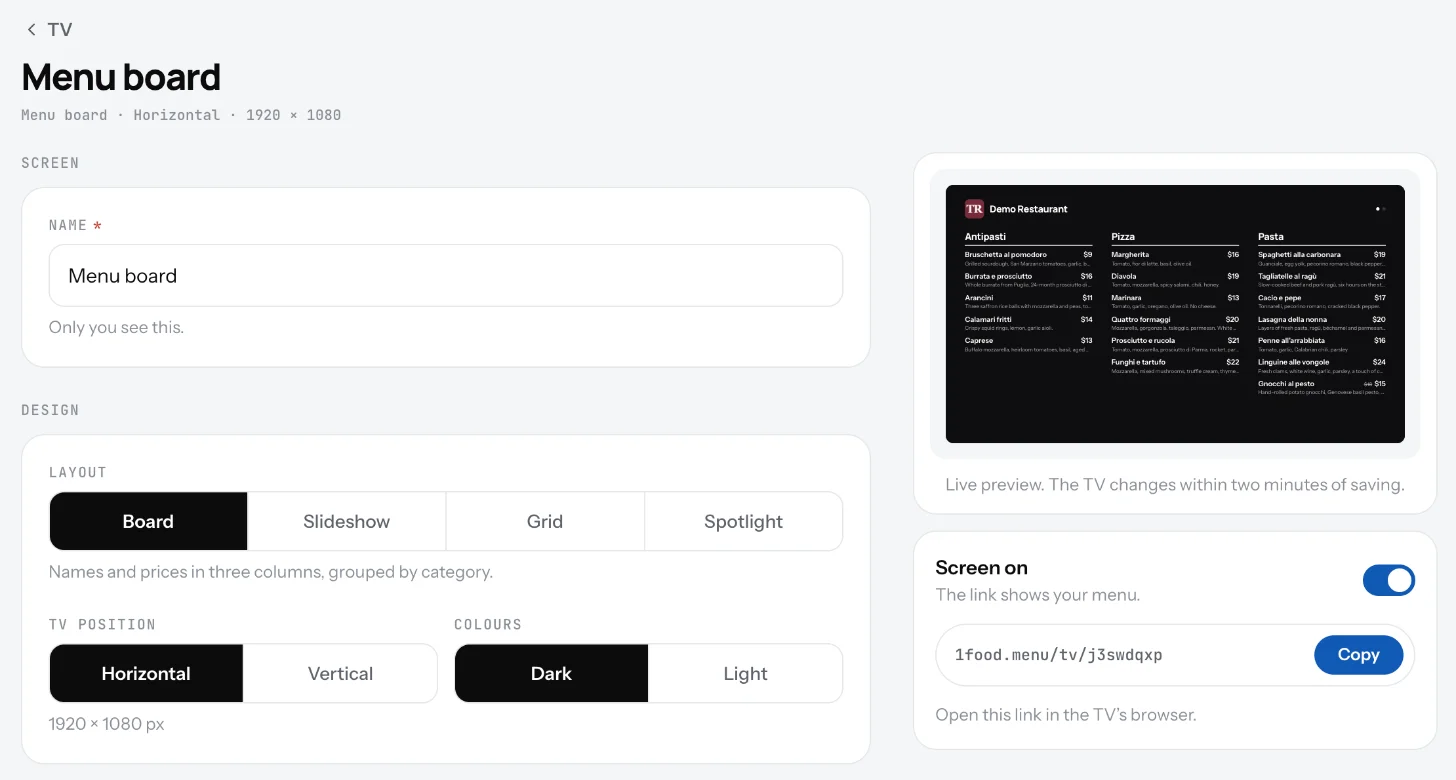
Every screen has its own settings, so the counter TV and the drinks TV can look different. The preview shows each change before you save it.
Change a screen's settings
- Open TV and click a screen.
- Under On the screen, turn on or off what guests see: Logo and name, Dish descriptions, Allergens, QR code.
- Pick Colours: Dark reads better on most TVs, Light suits a bright room.
- Set Speed, how many seconds each page, dish or photo stays on.
- Set the options of your design, like When the menu doesn't fit or Sold-out dishes.
- Click Save changes. The TV shows it within two minutes.
Good to know
- When the menu doesn't fit: Next page shows it in pages that change by themselves. Smaller text keeps everything on one screen.
- Sold-out dishes: Mark as sold out keeps them with "Sold out" instead of the price. Hide takes them off until they are available again. The slideshow always skips them.
- QR code puts a code in the corner. Guests scan it to open your page on their phone.
- Prices can show the currency sign, like $12, or just 12.
- The accent colour comes from your page's accent colour.
Related
- TV designsFour designs for a TV menu: Menu board, Photo slideshow, Photo grid and Spotlight. Each works on a horizontal or vertical TV.
- What's on a TV screenPick the categories a TV shows and their order, or untick single dishes. New dishes show up by themselves.
- Open your menu on a TVOpen the screen's link in the TV's browser and go full screen. After that, the TV keeps itself up to date.